
doBoard Project Management Software
Features
Plan projects, organize tasks, manage team workload, track time, run Agile planning, and keep project work connected in one simple workspace.
doBoard gives teams the core project management software features they need without turning everyday work into a complex setup.
Create projects and boards, assign tasks, customize workflows, plan available hours, track actual time, estimate work, and keep updates visible for everyone involved.
- Simple Work Hierarchy
- Tasks
- Projects and boards
- Companies
- Search
- Labels
- Tag Groups
- Task references
- Time Estimates
- Time tracking
- Due Dates That Update with Workflow Stages
- Team calendar
- Task Calendar with Available Hours
- Task comments
- Mentions
- Notifications
- Cross-project linking
- Time zones, Work hours, and Shifts
- Organize Users by Teams and Roles
- Access Levels and Project Permissions
- Boards as lightweight sprints
- Planning Poker
- Sprint Planning and Progress
- Website Feedback Features with Spotfix
doBoard Feature Overview
doBoard combines task and project management features, custom workflows, workload and capacity planning, time tracking, Agile project management, team collaboration, and website feedback tool in one workspace.
No credit card required. Setup in 2 minutes.
Use this overview to find the doBoard feature group that matches what your team needs, then jump to the detailed explanation below.
| What your team needs | doBoard features |
|---|---|
| Customize workflows |
Labels, Tag groups, Task references
|
| Keep the team aligned |
Task comments, User mentions, Notifications, Cross-project linking, Time zones, work hours, shifts, Users and roles, Access levels and project permissions
|
| Collect website feedback |
|
| Organize projects and tasks |
Simple work hierarchy, Tasks, Companies, Projects and boards, Search
|
| Run agile planning |
Boards as Lightweight Sprints, Planning Poker, Sprint Planning and Progress
|
| Plan workload and track delivery |
Team Calendar, Task Calendar with Available Hours, Time Estimates, Time Tracking, Due Dates That Update with Workflow Stages
|
Task and Project Management Features
Create projects, boards, and tasks to keep work clear from the first idea to delivery.
doBoard works as a simple task and project management workspace where teams can break work into tasks, assign responsible people, organize boards, and keep project information easy to find.
Simple Work Hierarchy
doBoard gives teams a simple work hierarchy without making project setup complicated.
There are three main levels in doBoard: tasks, boards, and projects.
Tasks are the smallest unit of work. Boards group related tasks together, so you can use a board for a sprint, department, project phase, client, or any other part of your workflow. Projects are the highest level, where related boards and tasks are kept in one place.
You can add tasks to a specific board or keep them directly inside a project. This gives your team a clear project structure, while still keeping the setup flexible and easy to manage.
If your team works with multiple clients or business units, you can also create separate Companies inside one doBoard account. Each Company keeps its projects, users, and access settings separate.
Explore Simple Work Hierarchy in detail
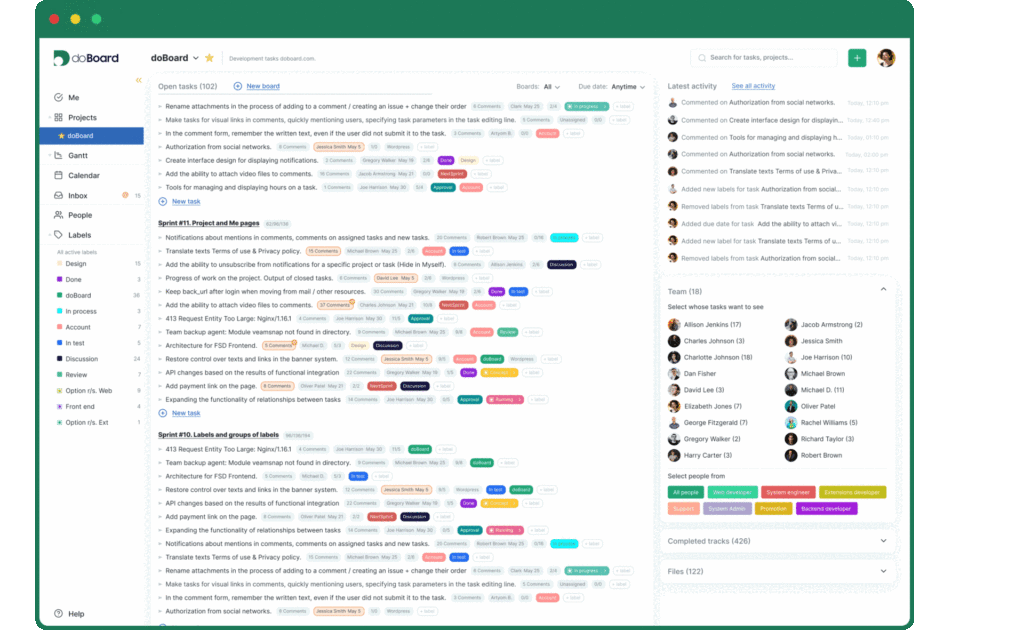
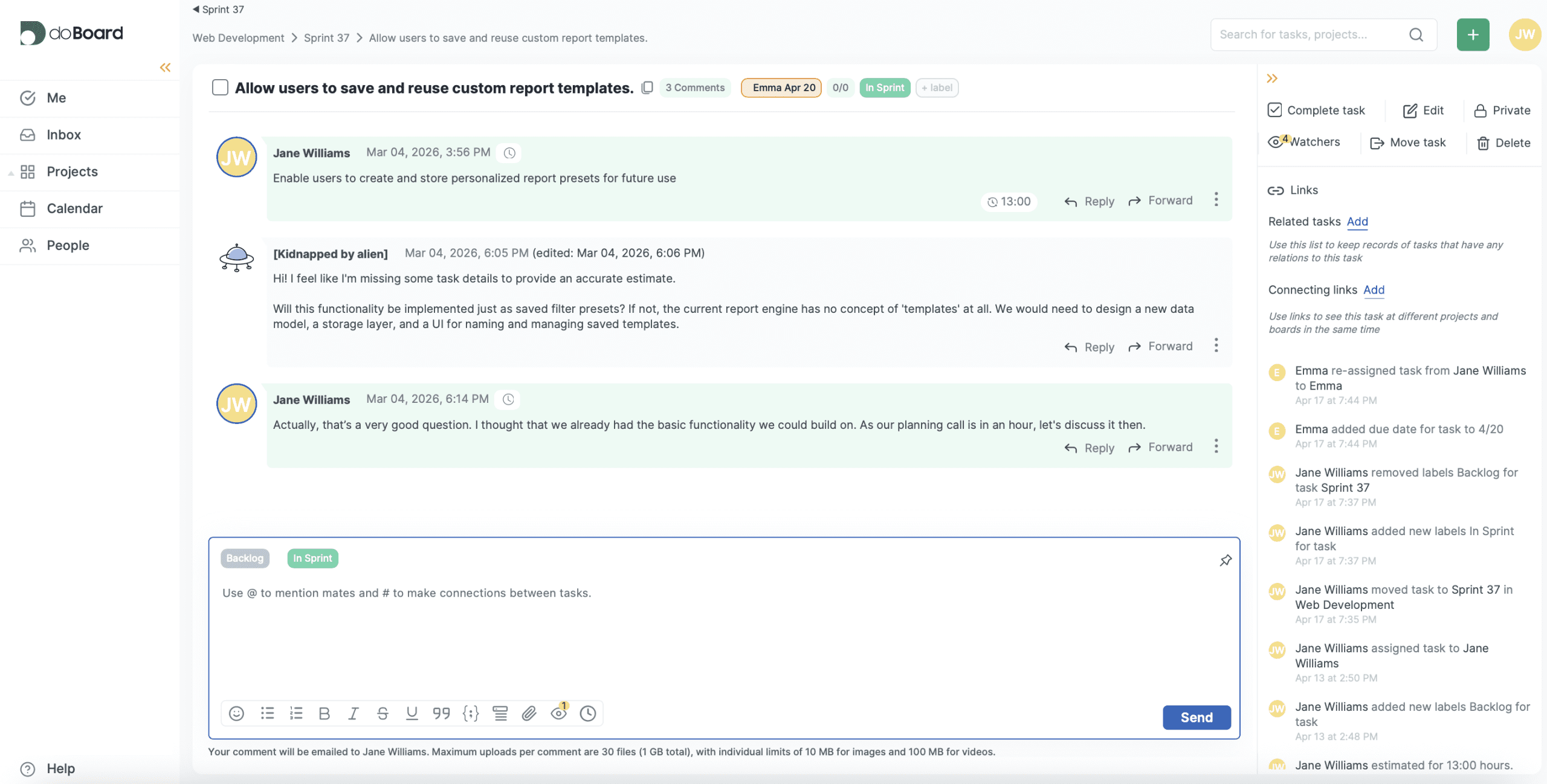
Tasks
Tasks are the smallest unit of work in doBoard. Projects and boards are built from tasks, so every task represents a specific piece of work that needs to be planned, assigned, discussed, and completed.
For each task, you can add a description, assign a responsible person, add followers, add a time estimate, set due dates, use labels, link related work, and keep the discussion in comments.
Team members can also log the time spent on a task directly in the comments, making task-level time tracking part of the workflow.
Explore Tasks in detail
Projects and boards
Use projects to organize major areas of work, such as a product, department, internal initiative, campaign, or long-term workstream.
Inside each project, create boards for the parts of work you want to manage separately. A board can represent a sprint, backlog, release, project phase, campaign stage, or any other focused workspace your team needs.
Explore Projects and Boards in detail
Watch a short video
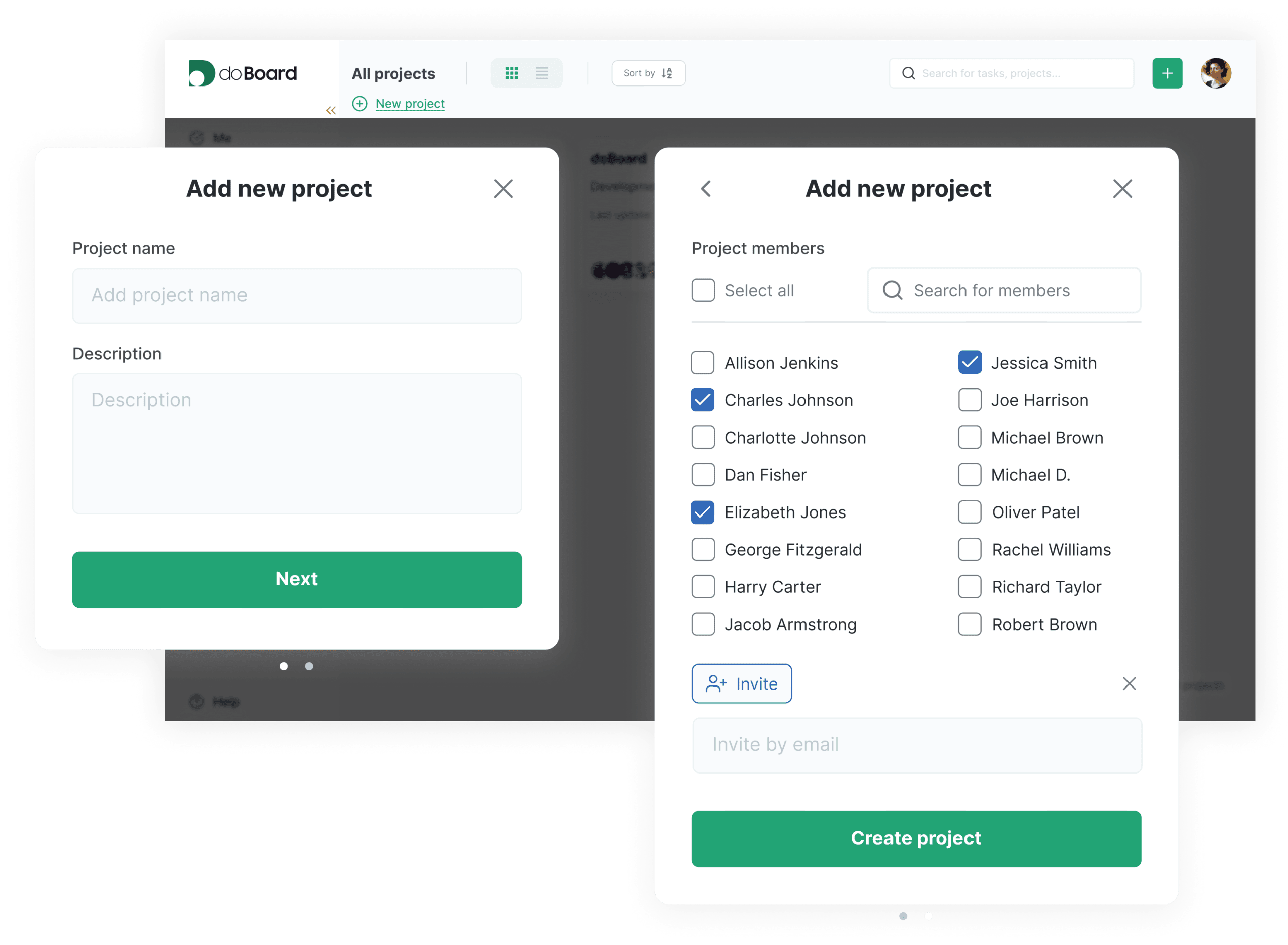
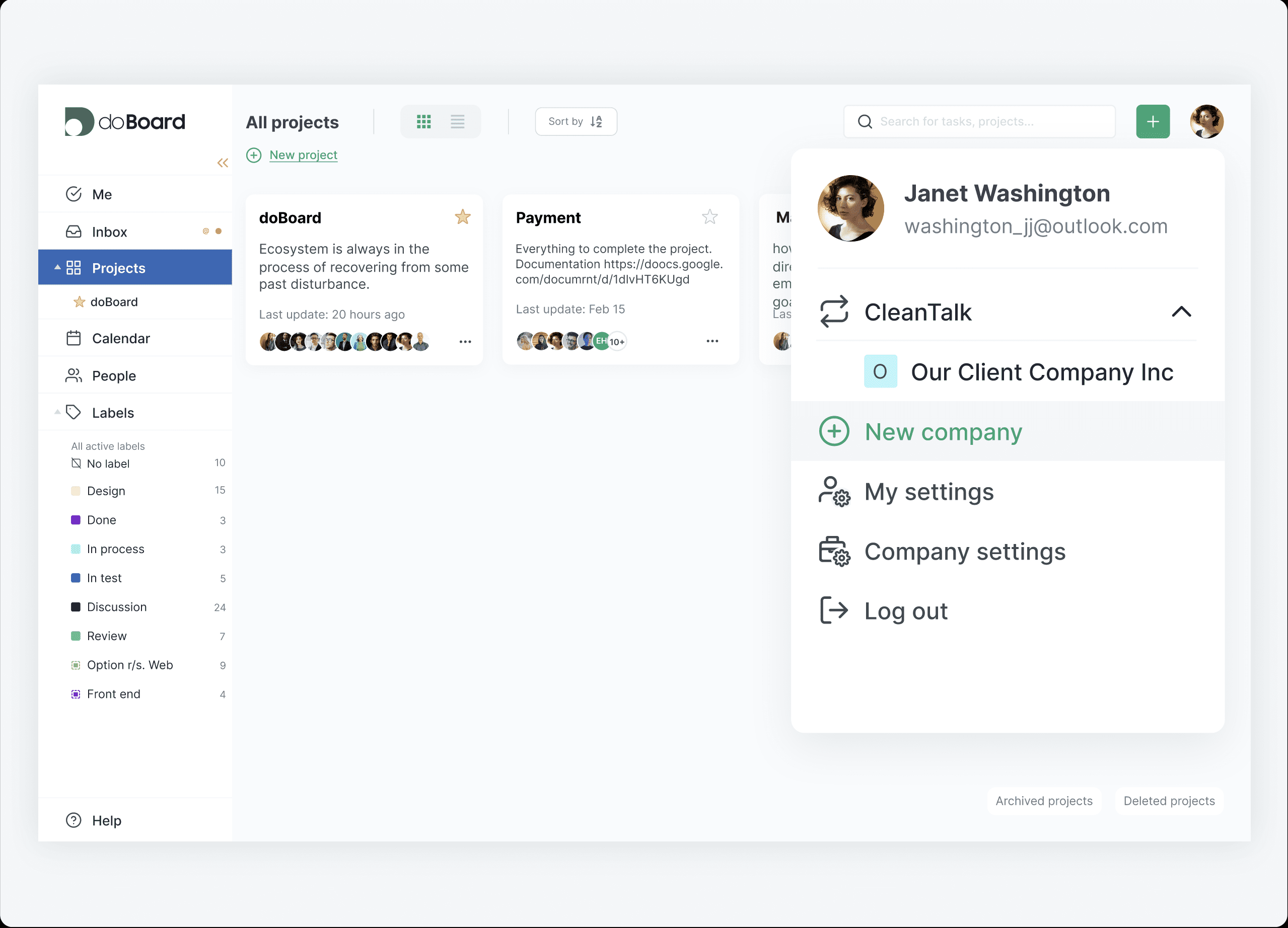
Companies
Companies help you separate work into independent spaces inside one doBoard account.
You can create different companies for different clients, business units, or teams. Each company has its own projects, boards, tasks, users, and access settings, so work stays clearly separated.
This is especially useful for agencies, consultants, and teams working with multiple clients. For example, you can create a separate company for each client, invite only the people who need access, and make sure one client cannot see another client’s projects or tasks.
Search
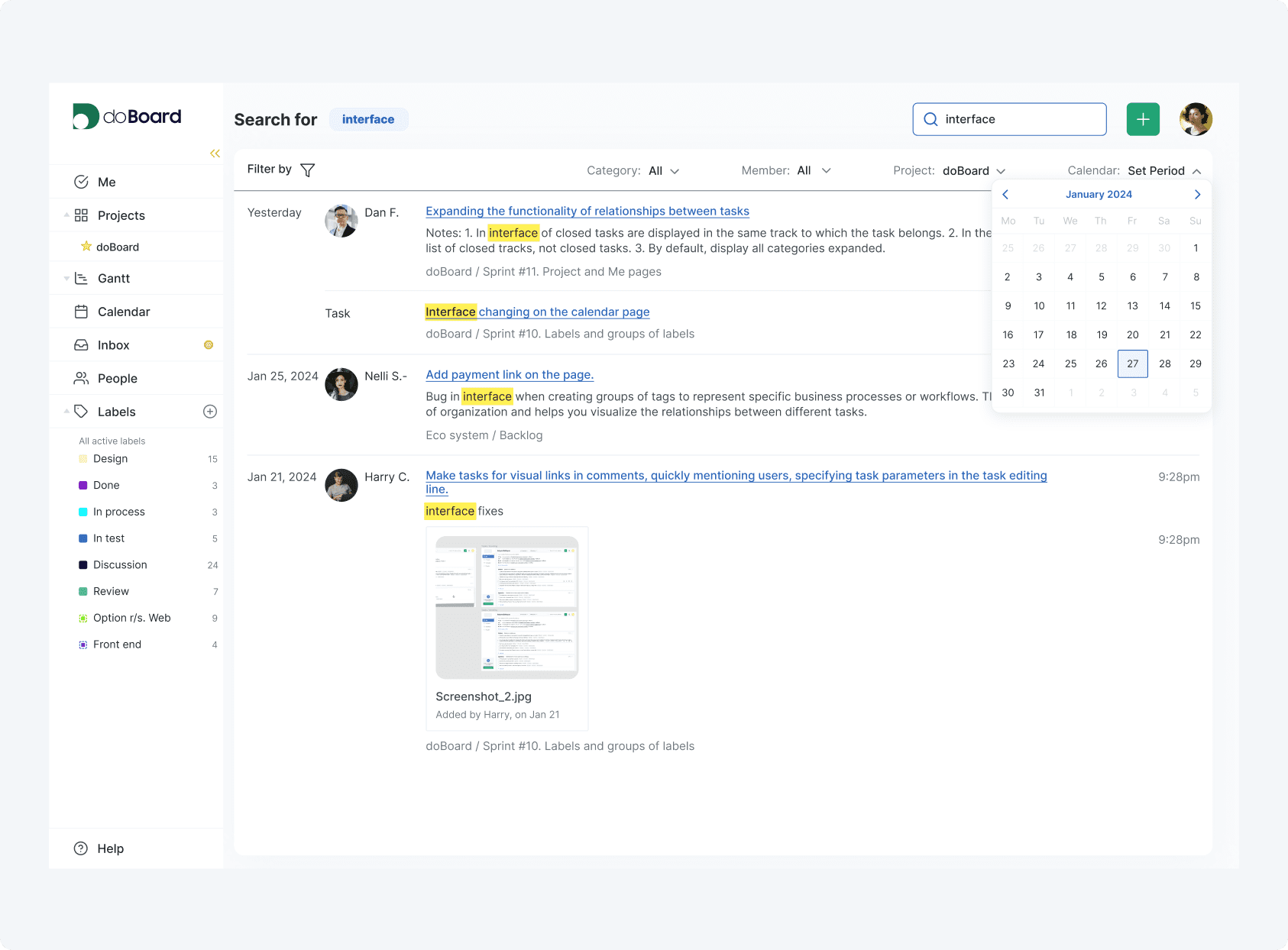
Use search to find tasks, comments, and project information quickly instead of digging through boards manually.
Explore Search in detail
Custom Workflow Features with Labels and Tag Groups
Adapt doBoard to the way your team already works.
Not every team needs the same workflow. doBoard gives teams flexible custom workflow features through labels, tag groups, and task references, so you can organize work without building a complicated system.
Labels
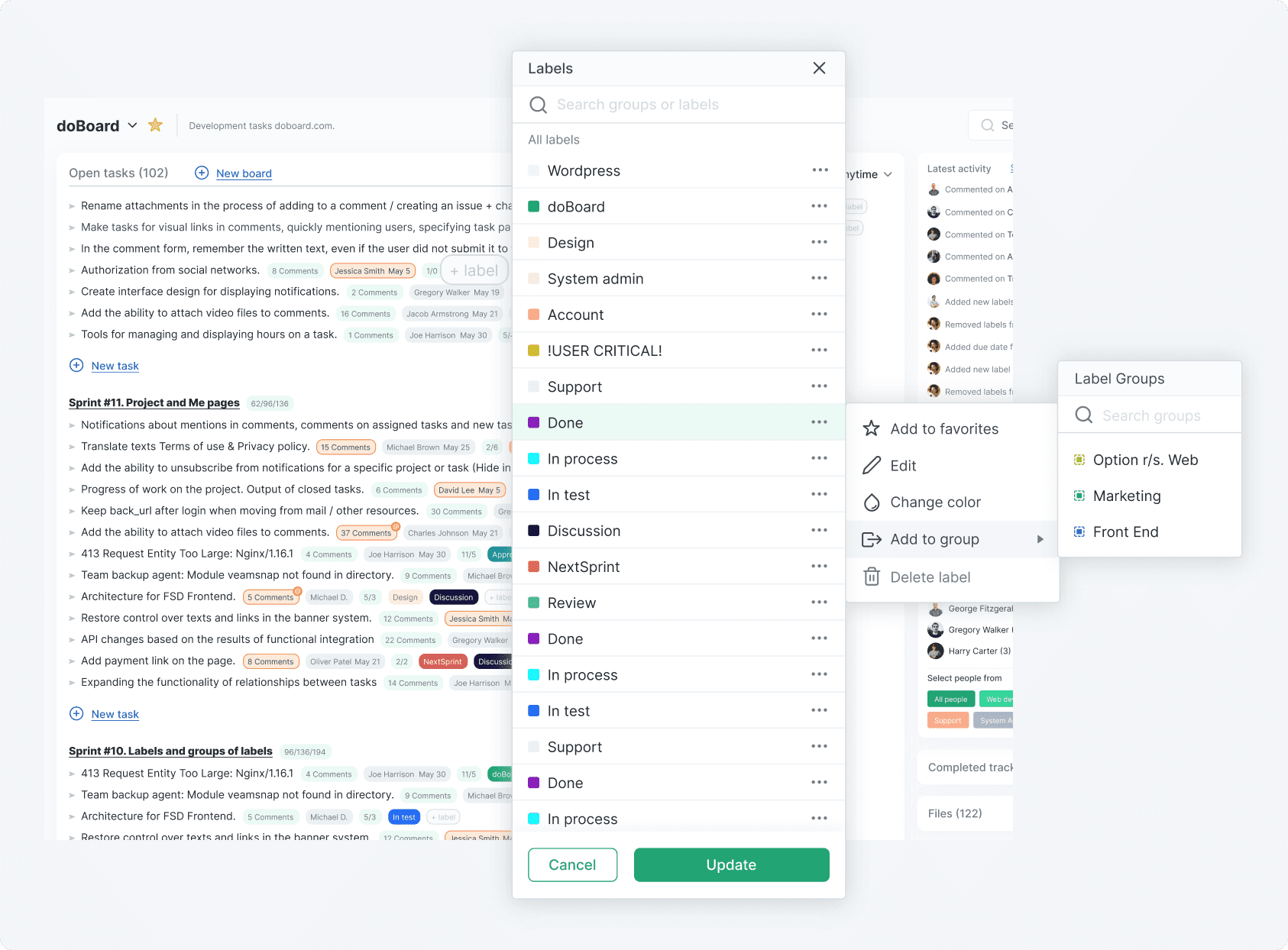
Use labels to mark tasks with any word or category your team needs. A label can show priority, task type, status, department, client, topic, or any other context that helps organize work.
You can add multiple labels to the same task, choose label colors, save important labels as favorites, and filter tasks by labels across project pages, boards, and your personal task view. Filters can show tasks that have all selected labels, any selected label, or none of them
For example, teams can use labels like High priority, Bug, Design, Client request, Marketing, Needs review, Waiting for approval, Backend, or Content update.
Explore Labels in detail
Tag Groups
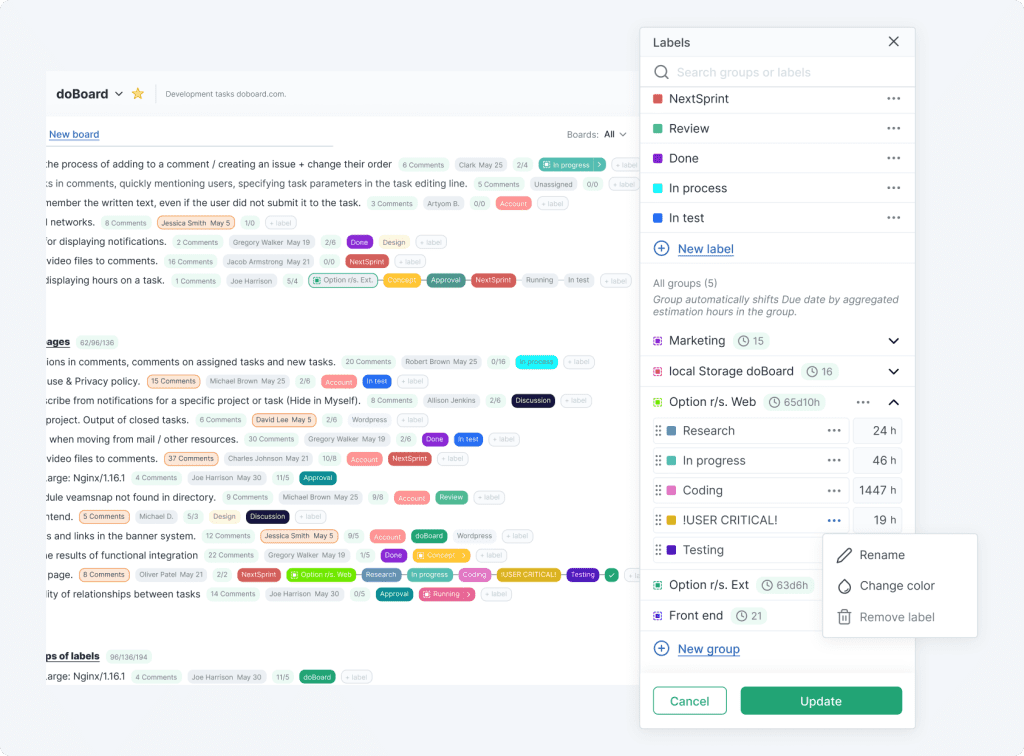
Use tag groups to track a task through a sequence of workflow stages. A tag group is made from labels arranged in a specific order, so the task can move from one stage to the next as work progresses.
Unlike regular labels, only one tag group can be active on a task at a time. This makes tag groups useful for step-by-step processes where the current stage matters. You can move a task forward to the next stage, move it back if needed, and close the task once the group is completed.
For example, a team can create a tag group called Development Workflow with stages like To Do, In Progress, Code Review, QA, and Done. As the task moves through the process, doBoard shows which stage it is currently in.
Explore Tag Groups in detail
Task references
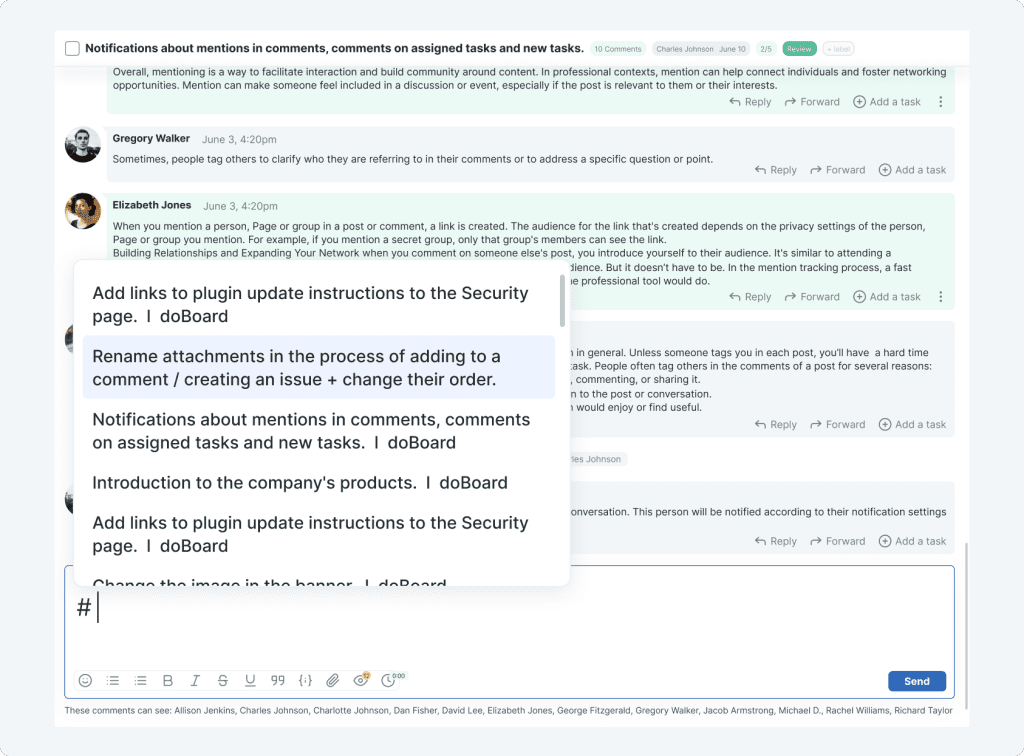
Use task references to link related tasks directly from a comment. When writing a comment, type # and start entering the task name to find and select the task you want to reference.
After the comment is posted, doBoard creates a link between the tasks, so related work is easier to follow. This is useful when one task depends on another, when you want to point teammates to relevant context, or when a discussion in one task is connected to work happening elsewhere.
Explore Task References in detail
Capacity, Workload, and Time Tracking Features
Plan work around real team availability, not guesses.
doBoard helps teams connect workload planning, capacity planning, estimates, due dates, and actual time spent. This makes it easier to see whether the team has enough available hours to deliver the work already planned.
Time Estimates
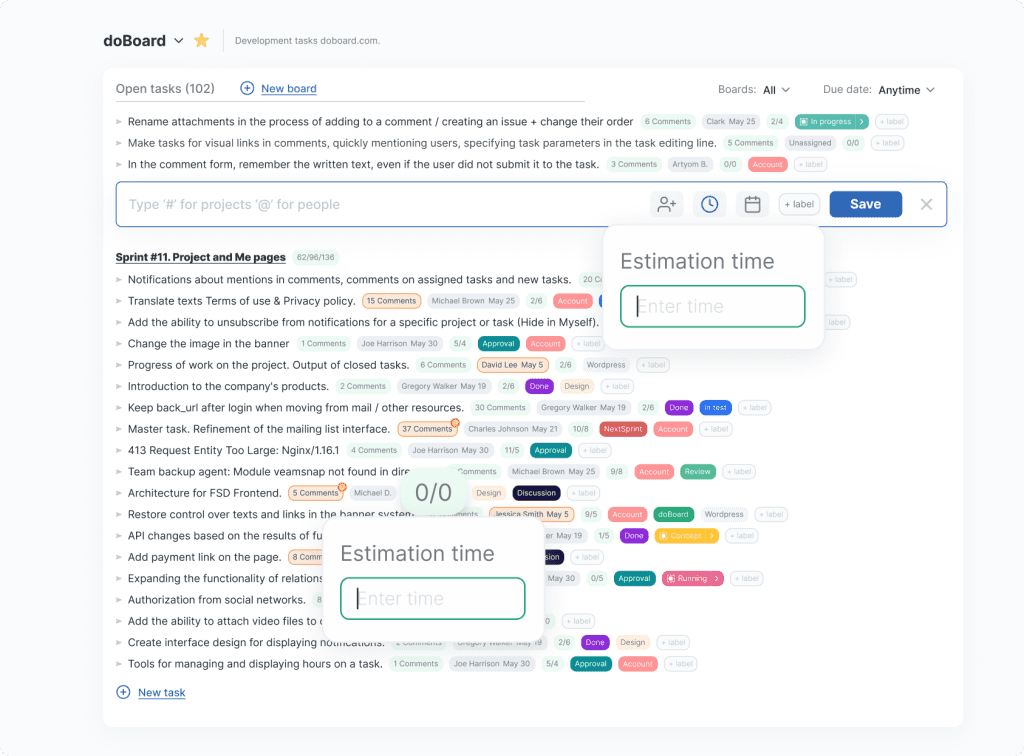
Add a time estimate to each task to plan workload before the work starts. For every estimate, you can select the team member responsible for the task and set how many hours the task is expected to take.
doBoard then helps compare estimated hours with actual time spent, so teams can see where work takes longer than planned and improve future estimates. Estimated and worked hours can also be reviewed at board and project level, which makes workload planning easier across larger pieces of work.
Explore Time Estimates in detail
Time tracking
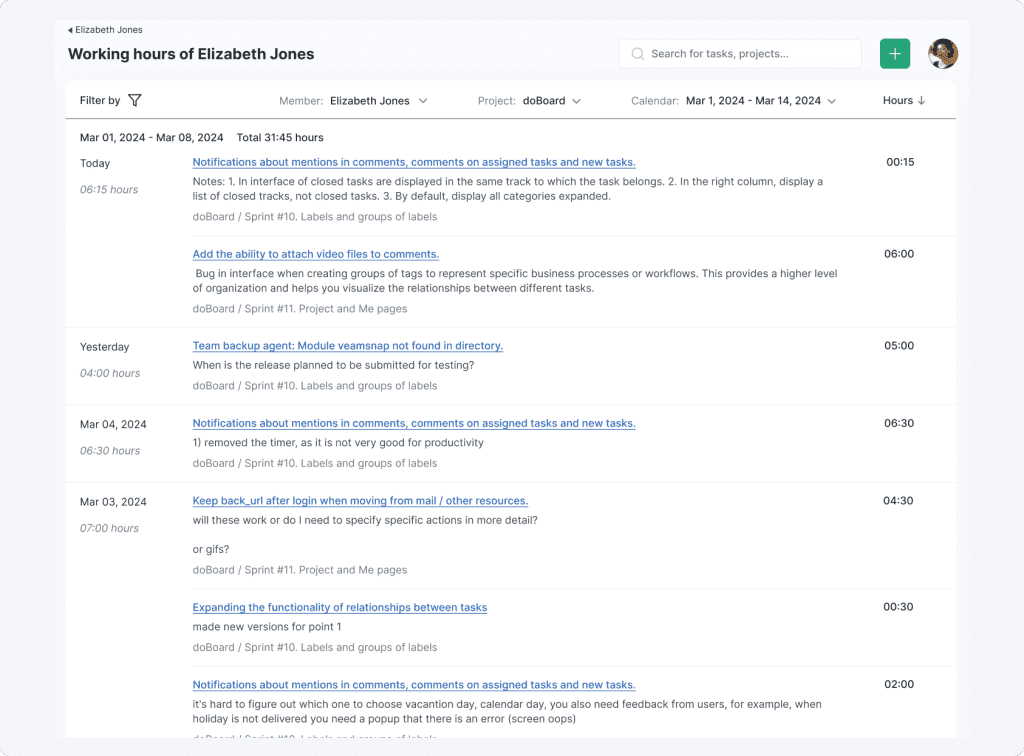
Track time directly in task comments, so every time entry stays connected to the work and context behind it. Team members can enter time manually or select the time spent since opening the task or since the previous comment.
doBoard does not use an automatic running timer, which helps keep time tracking intentional instead of creating noisy or accidental records. Tracked time is added to working hours and can be reviewed by task, teammate, day, week, month, board, project, or across projects.
Explore Time tracking in detail
Due Dates That Update with Workflow Stages
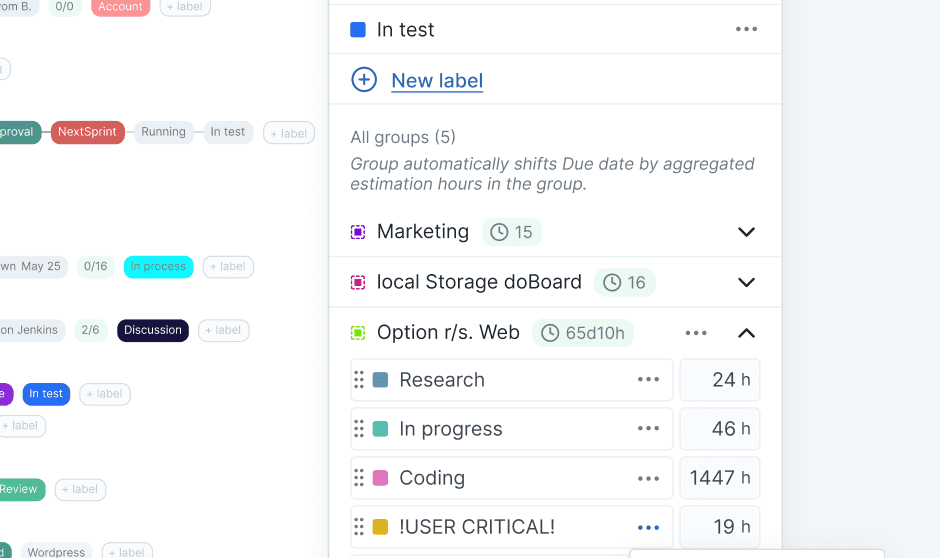
doBoard can automatically calculate due dates based on the planned time for each stage in your workflow.
For example, if a tag group includes stages like To Do, In Progress, Review, and Done, you can define how many hours each stage should take. When a task moves to the next stage, doBoard uses those stage settings to calculate the next due date, so the team does not need to update deadlines by hand every time work moves forward.
Explore Due Dates That Update with Workflow Stages in detail
Team calendar
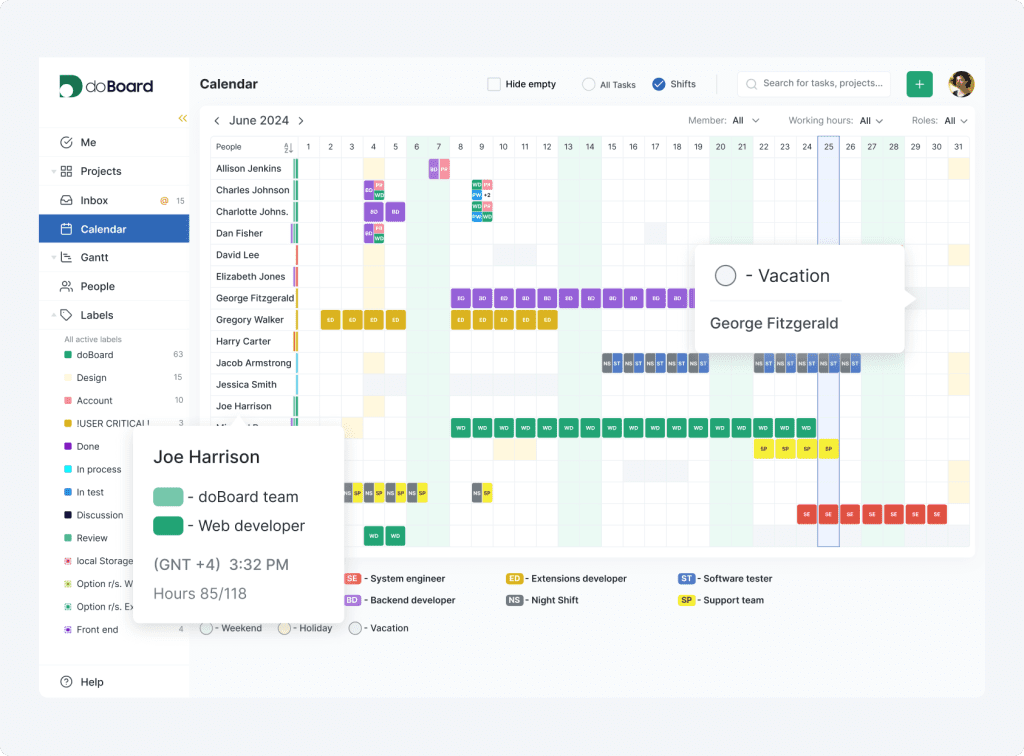
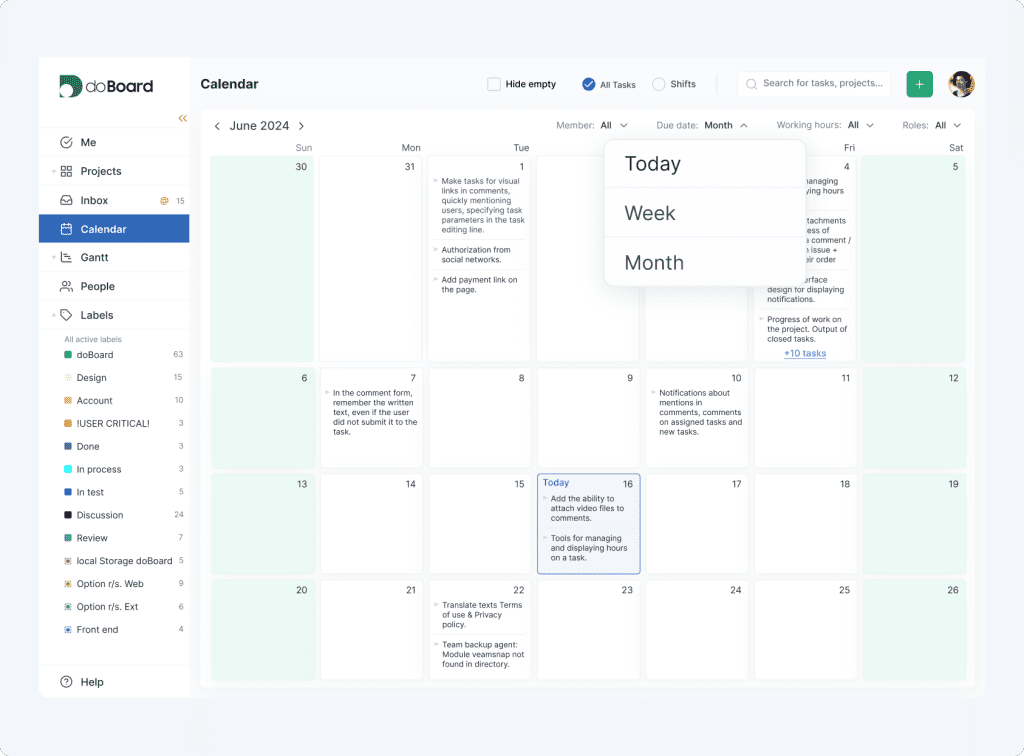
Use the team calendar to see who is working, who is unavailable, and who is assigned to specific duties or shifts.
The calendar has two modes: Tasks and Shifts. In Tasks mode, you can view planned tasks by month, week, or day and filter them by teammate. In Shifts mode, you can see when teammates are active or not active, who is on duty, who is on vacation or holiday, and which roles or schedules apply to each person.
You can also narrow the calendar view by people, working hours, department roles, duty roles, tasks or shifts, and hide empty rows to focus only on relevant team activity.
Explore Team calendar in detail
Task Calendar with Available Hours
Use the task calendar to plan workload around scheduled tasks and available hours. In Tasks mode, you can see which tasks are planned for each day, switch between month, week, and day views, and filter the calendar by teammate.
When you select a team member, doBoard shows their total and planned hours for each day. This helps you see how much work is already planned, open the relevant tasks directly from the calendar, and avoid overloading someone before assigning more work.
Explore Task Calendar in detail
Team Collaboration and Project Visibility Features
Keep project discussions, updates, availability, access, and ownership connected to the work itself.
doBoard is not a chat replacement. It supports the team collaboration features that belong inside project management: task comments, mentions, notifications, linked tasks, project visibility, roles, access levels, time zones, visible work hours, and shifts.
This helps teams keep decisions, updates, responsibilities, and availability close to the tasks and projects they affect, instead of spreading important context across separate chats and disconnected tools.
These features also support asynchronous work by keeping comments, mentions, updates, task links, and ownership visible inside the project workspace.
Task comments
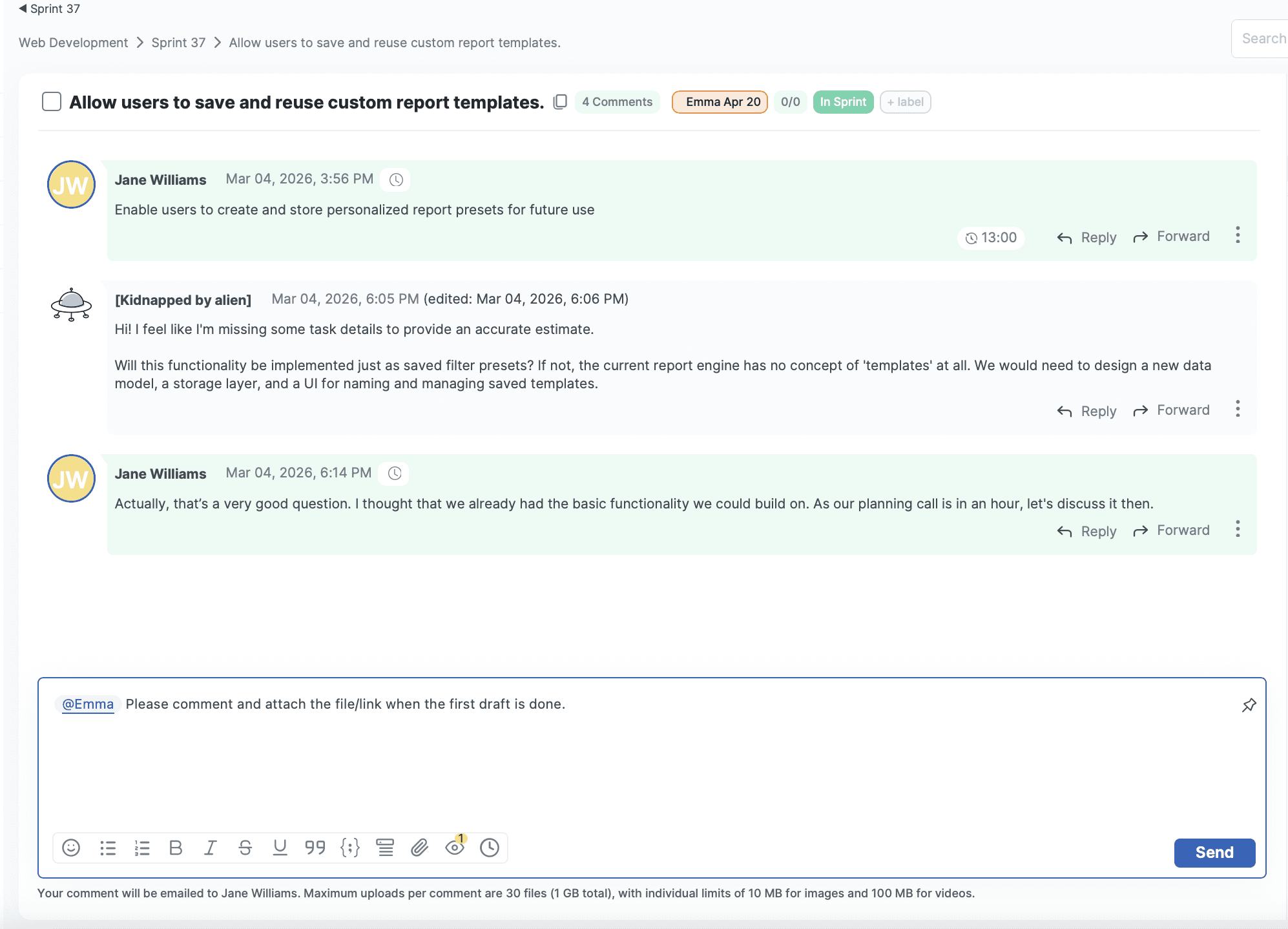
Use task comments to keep discussions, decisions, questions, updates, and time entries connected to the specific task they belong to.
Comments help teams understand not only what changed, but why it changed. They also support mentions and task references, so teammates can bring the right people into the discussion or link related work without leaving the task.
Explore Task comments in detail
Mentions
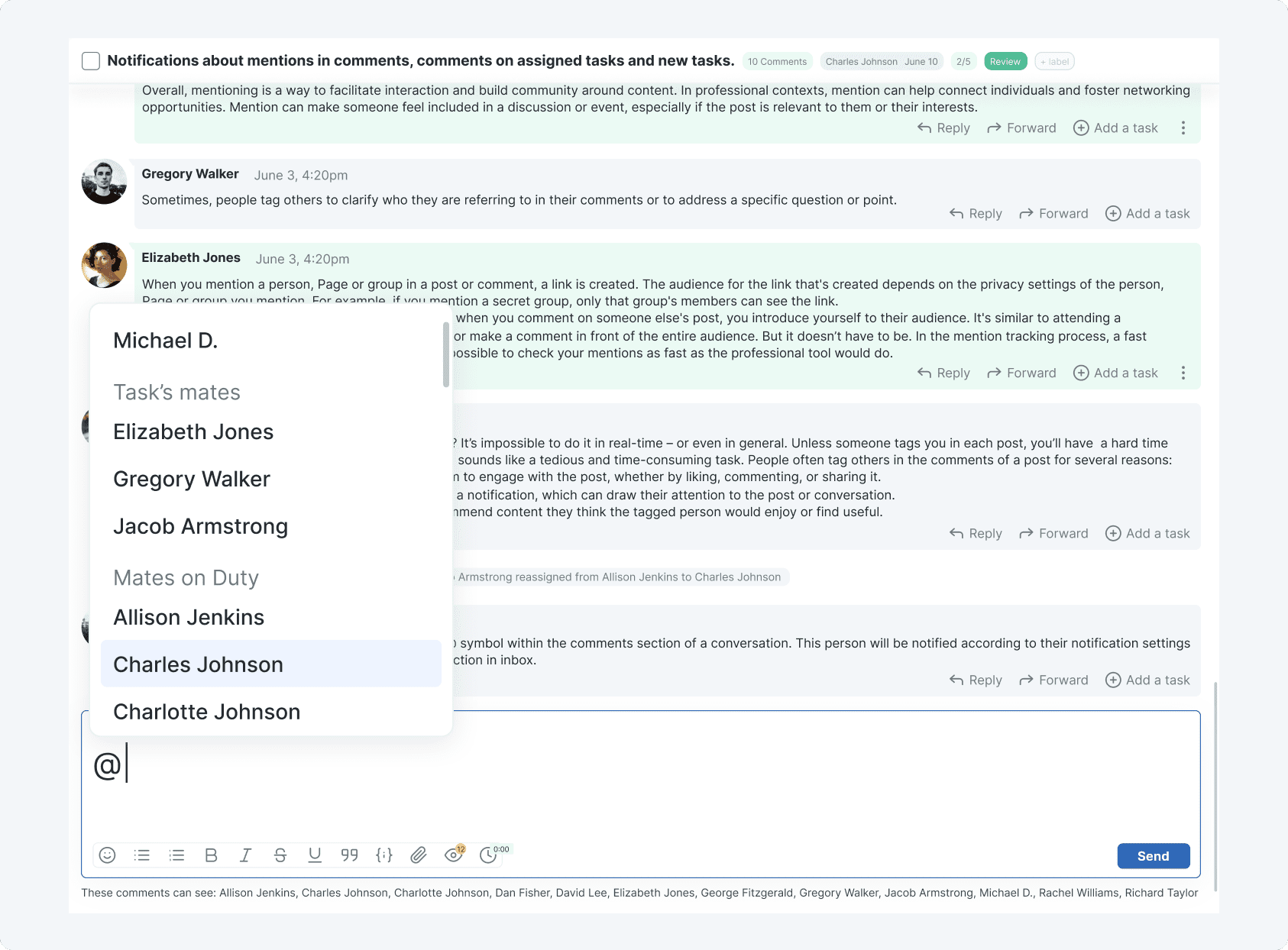
Mention teammates in task comments when you need their input, approval, or attention.
doBoard supports different mention types, so you can notify a specific person, everyone who has commented in the task, teammates currently on duty, or everyone in the organization. This helps important updates reach the right people without turning every comment into a company-wide alert.
Explore User mentions in detail
Notifications
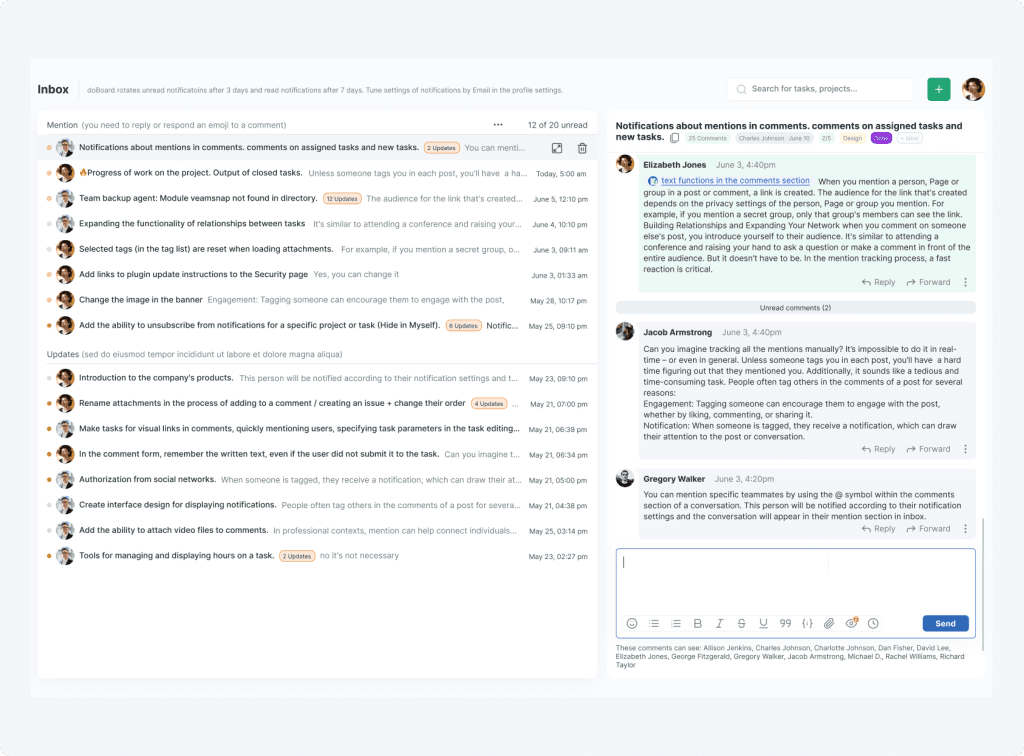
Use the Inbox in the main menu to stay aware of task updates that need your attention.
Notifications are split into tasks where you were mentioned and tasks you follow, so you can quickly separate direct requests from general updates. This helps you track comments, mentions, assignments, status changes, and other activity without checking every board manually.
You can focus on unread items, mark notifications as read, and clear the inbox when updates are handled. Task-related notifications can also be sent by email either as individual update emails or as a doBoard Daily Feed, a once-a-day summary of relevant updates.
Explore Notifications in detail
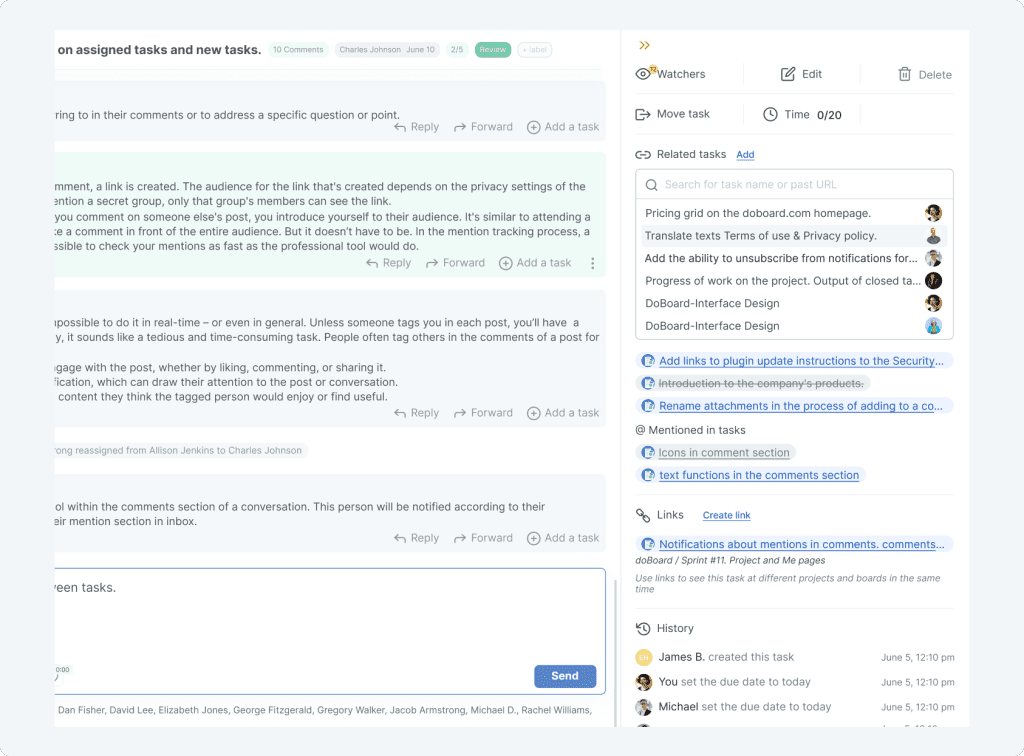
Cross-project linking
Connect related tasks across different projects when work depends on something happening elsewhere.
doBoard lets teams manually link related tasks, see where a task was mentioned, and create connecting links in other projects or boards without losing the original task context. This is useful for dependencies, shared work, repeated requests, or tasks that need to stay visible in more than one place.
Explore Cross-project linking in detail
Time zones, Work hours, and Shifts
Use locations, time zones, working hours, and shifts to understand who is available and when.
In the calendar, teams can switch between Tasks and Shifts modes, filter by people, working hours, department roles, and duty roles, and see who is active, not active, on duty, on vacation, or assigned to a specific shift.
The People tab also gives a quick team overview with each teammate’s role, time zone, and local time, so it is easier to understand availability without asking everyone manually.
Time zones, visible work hours, and shifts help teams coordinate across different schedules without relying on real-time check-ins.
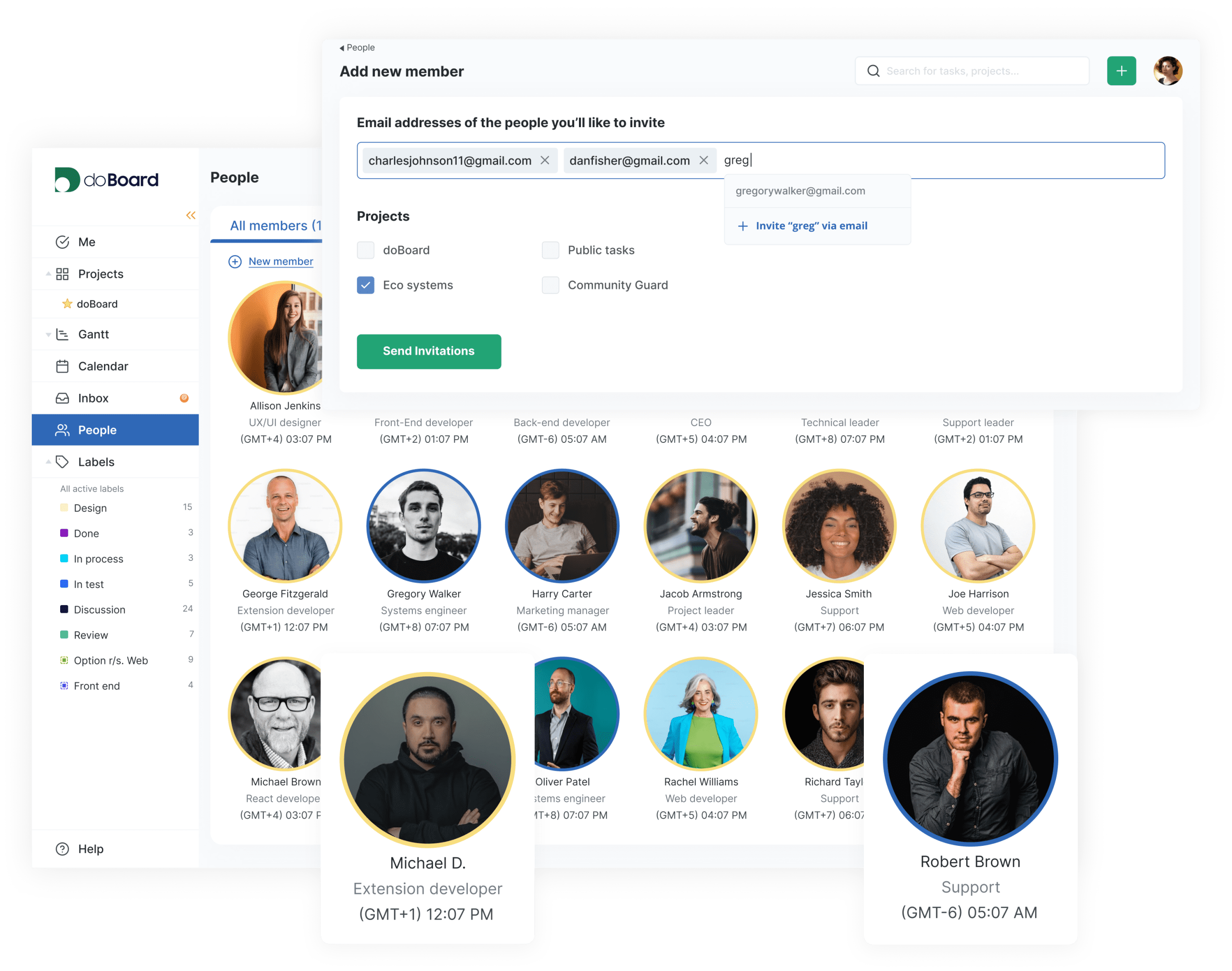
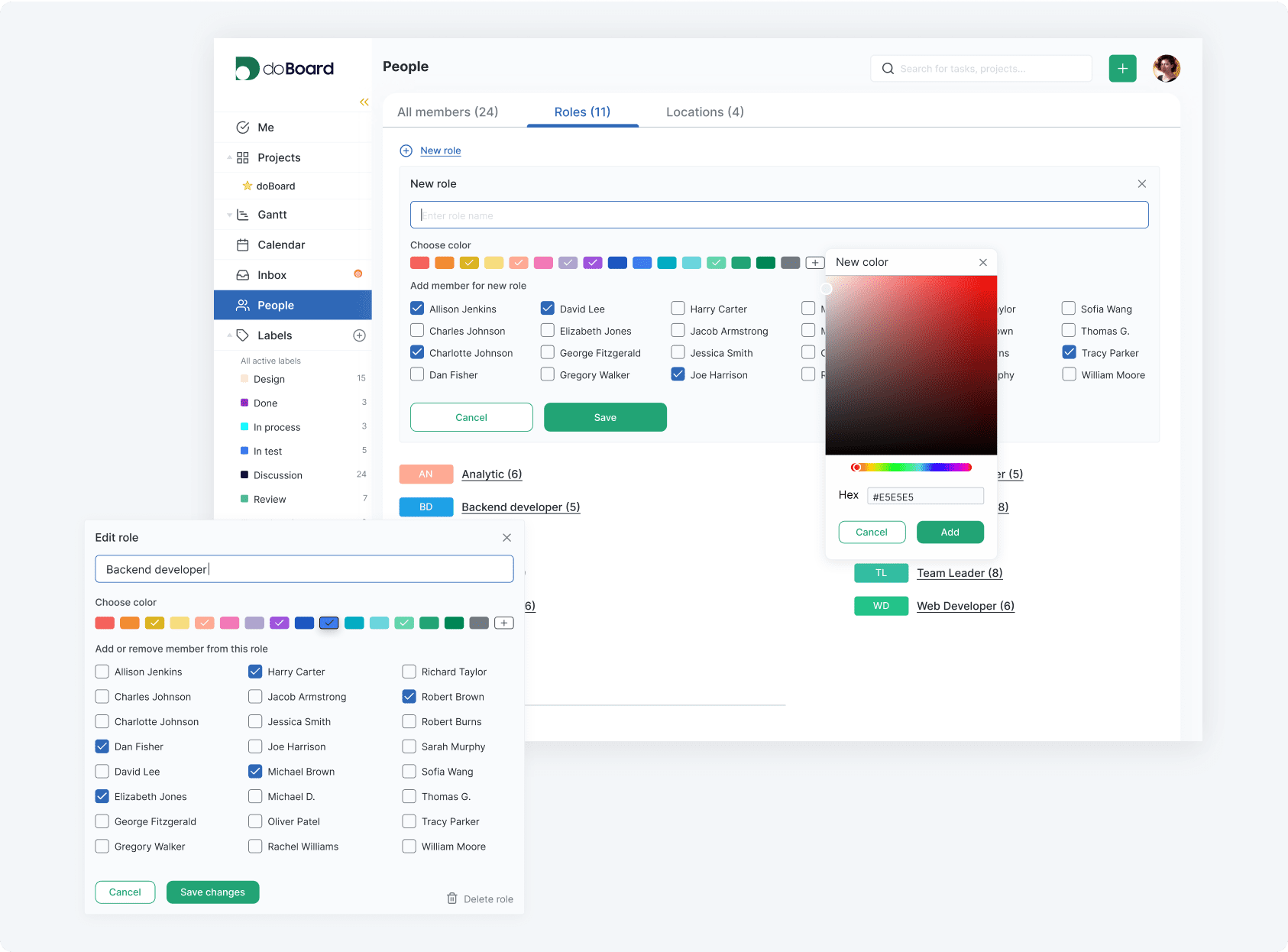
Organize Users by Teams and Roles
Group users by team, department, function, or duty role, so responsibilities are easier to understand across projects.
Teams and roles help show who owns the work, who should be involved in a task, and who is available for specific duties or shifts. This makes it easier to coordinate work without guessing who is responsible for what.
Explore Teams and Roles in detail
Access Levels and Project Permissions
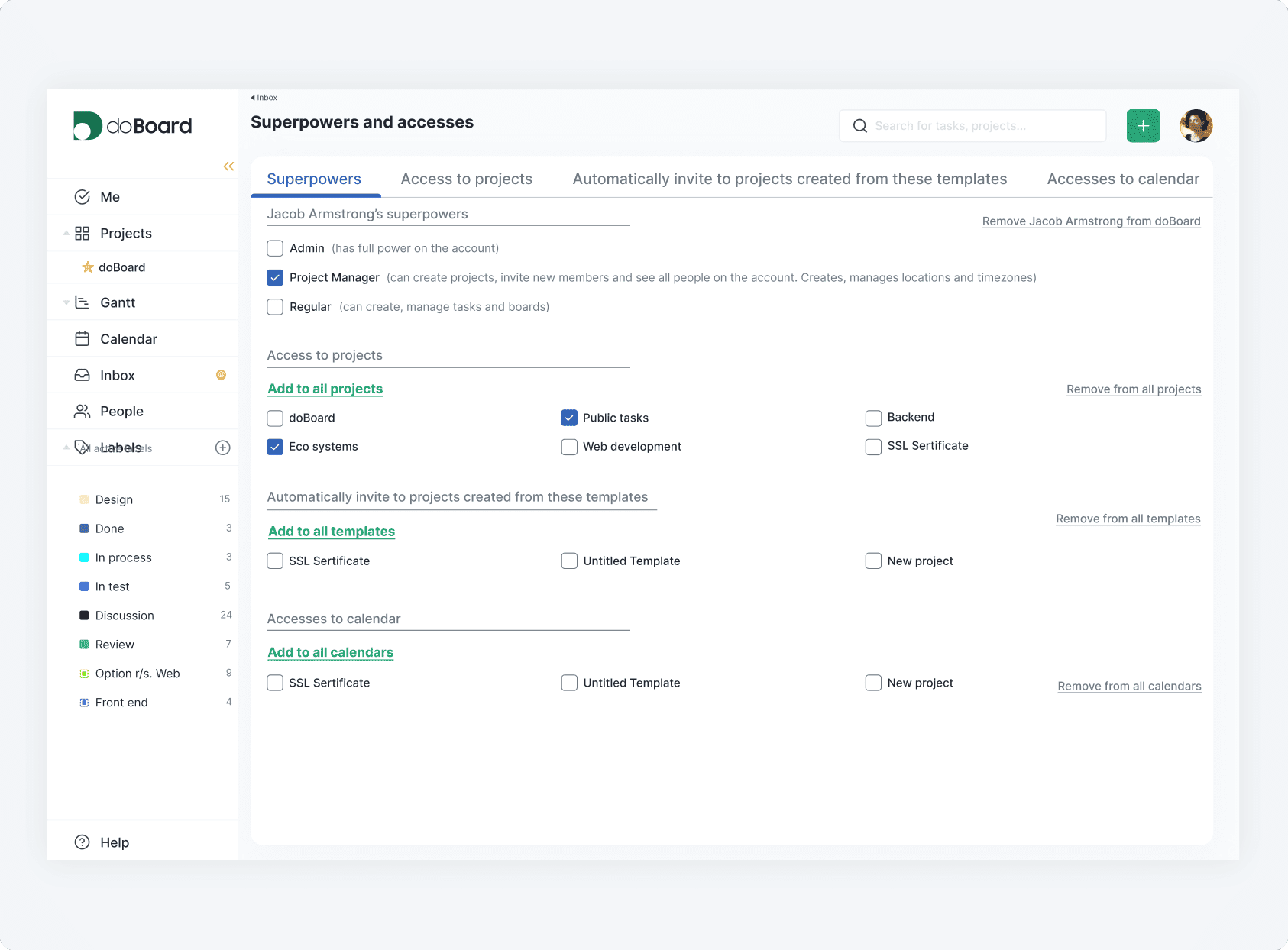
Control both what a user can do in doBoard and which companies or projects they can see.
doBoard supports different access levels, such as Admin, Project Manager, and Regular user. These roles define what actions a person can perform in the system.
Separately, you can give users access only to the company or project they need to work with. For example, a client can be added to one company or one specific project and will not see other companies, projects, boards, or tasks in your account.
This helps teams work with clients, contractors, departments, or private internal projects while keeping unrelated work hidden.
Explore Access Levels and Project Permissions in detail
Agile Project Management and Sprint Planning Features
Run lightweight Agile project management without adding a heavy process on top of your work.
In doBoard, a board can work as a sprint, backlog, release, or any other planning space your team needs. Create a board, add tasks, estimate the work, plan available hours, and track progress from the same place where the work is managed.
This gives teams a practical way to handle sprint planning, backlog organization, estimation, and progress tracking without switching between separate tools.
Boards as lightweight sprints
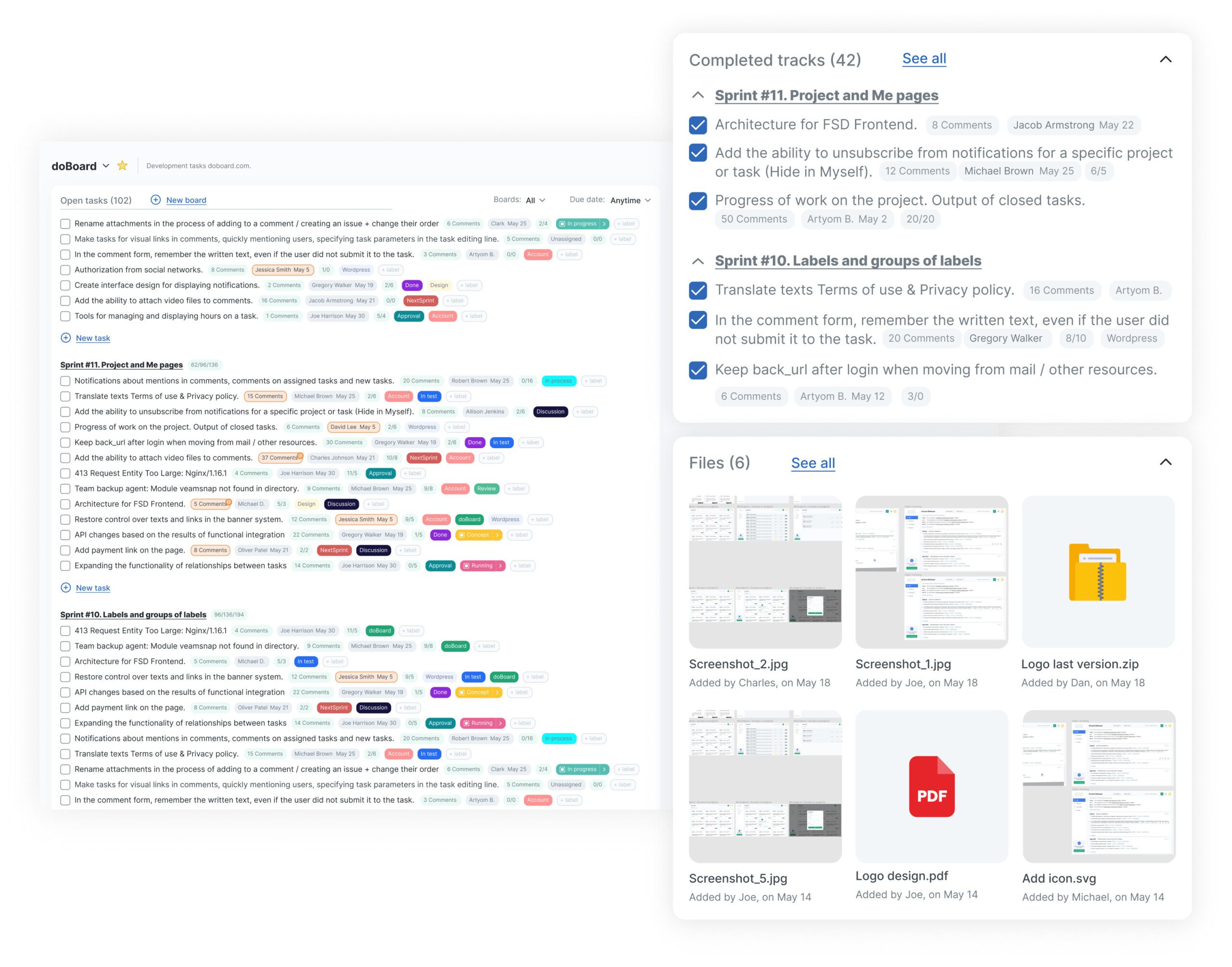
A sprint in doBoard can be organized as a board. Your team can create a board for a sprint, add the tasks planned for that sprint, assign teammates, add labels or tag groups, and manage the work inside that board.
The same approach can also be used for backlogs. You can create a backlog board and organize tasks with labels, tag groups, priorities, or workflow stages before moving selected tasks into a sprint board.
Planning Poker
Use Planning Poker to estimate tasks with the team before committing to a sprint or project plan.
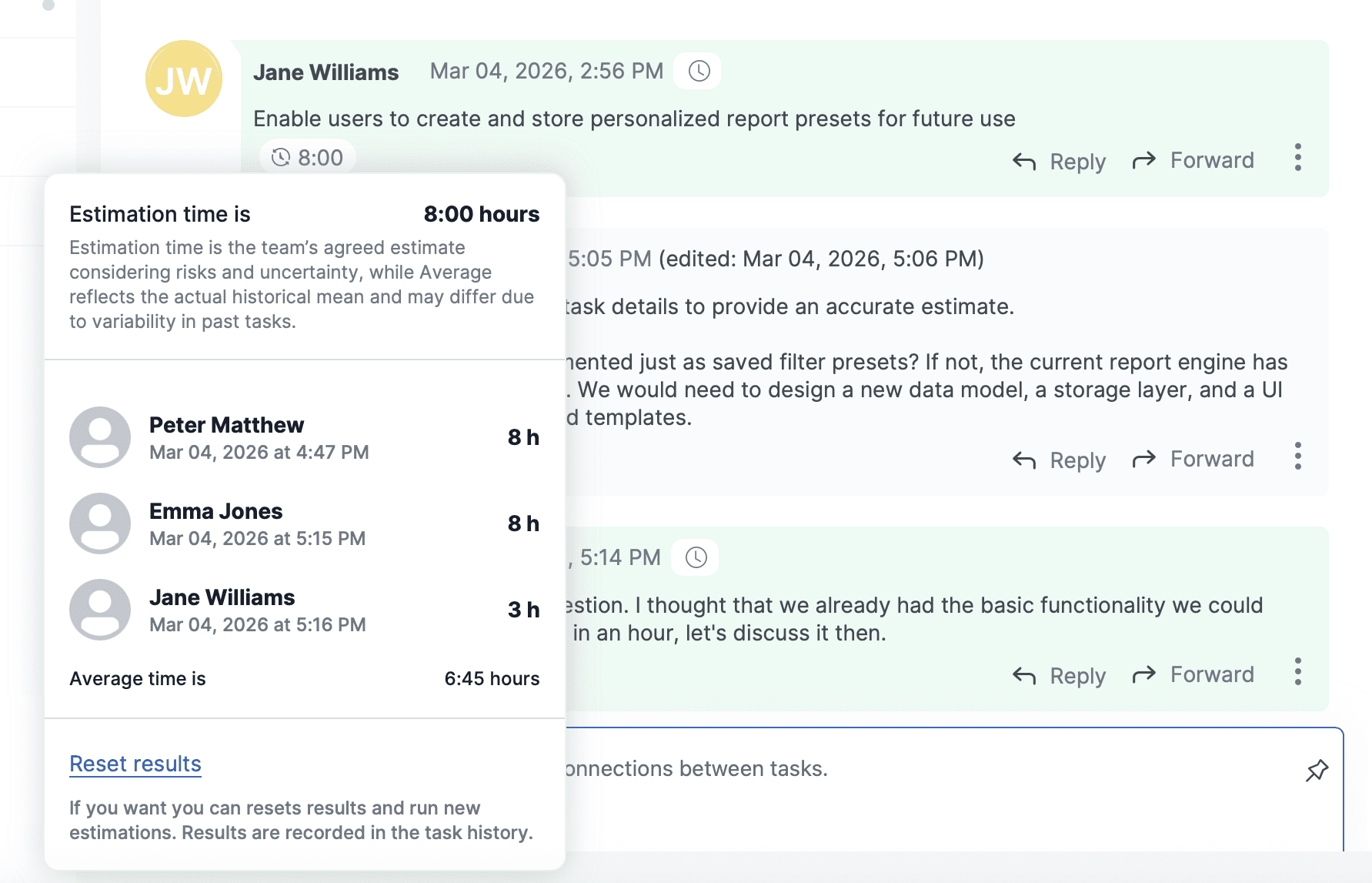
Planning Poker in doBoard happens inside the task, so the estimation discussion stays connected to the task description, comments, and context. Teammates can vote asynchronously, keep votes private until reveal, and use the built-in Fibonacci scale to agree on the task estimate.
After the team agrees on the estimate, the scrum master or responsible teammate can use it to set the task’s planned time. That planned time is then included in sprint planning, where doBoard shows the total estimated workload for the sprint.
Explore Planning Poker in details
Sprint Planning and Progress
Use Sprint Planning to check whether the selected tasks fit the team’s available capacity before the sprint starts and while work is in progress.
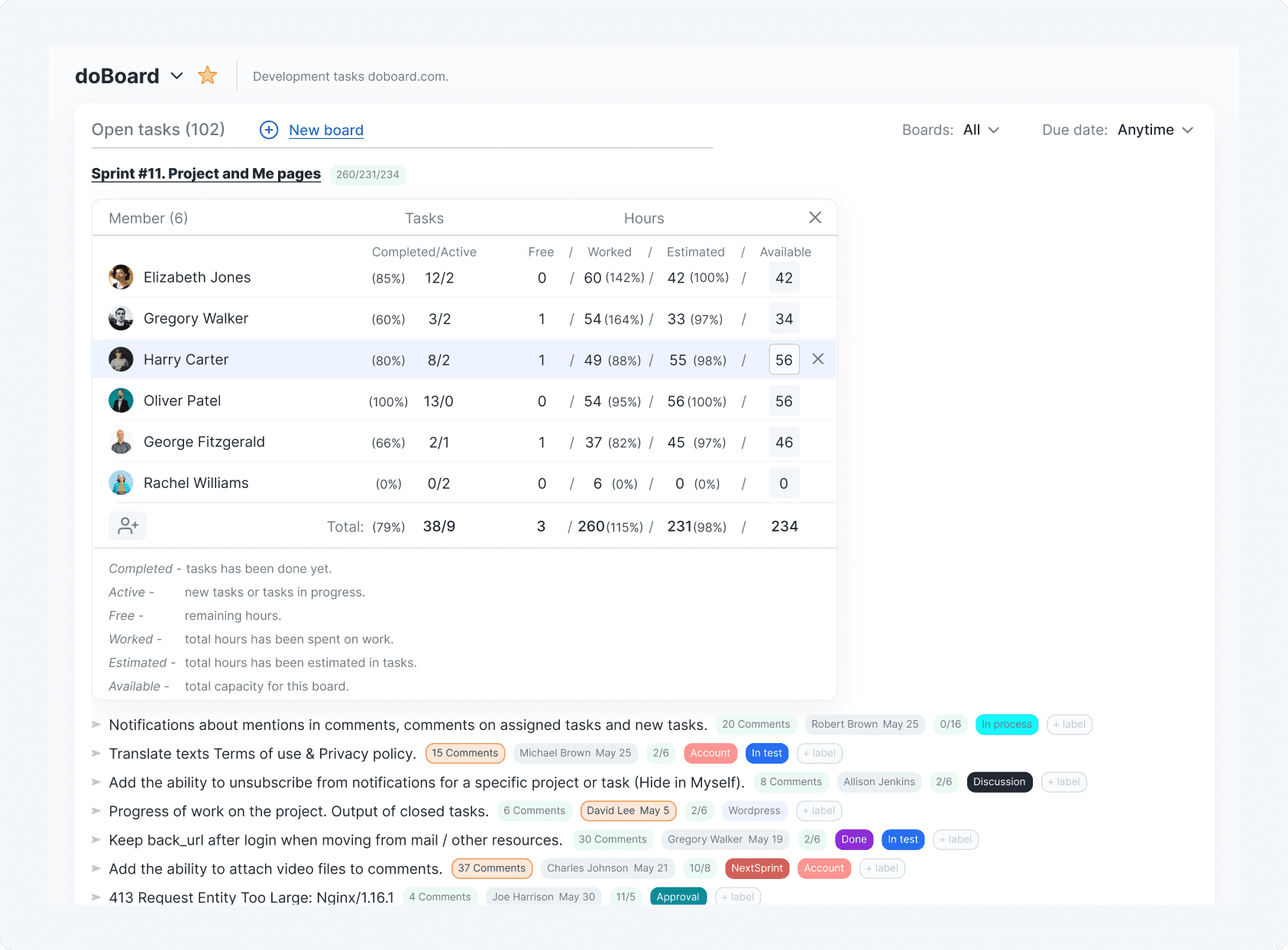
When tasks are added to a sprint board, doBoard shows a planning view with workload and progress by teammate. You can see how many tasks are completed or active, how many tasks are planned, how many hours are estimated, how many hours have already been worked, how much time is still free, and how much capacity is available for the board.
This helps the team understand the total planned workload, spot overload early, see who still has free capacity, and adjust the sprint before the plan becomes unrealistic.
Explore Sprint Planning and Progress in detail
Turn website feedback into project tasks
Website Feedback Features with Spotfix
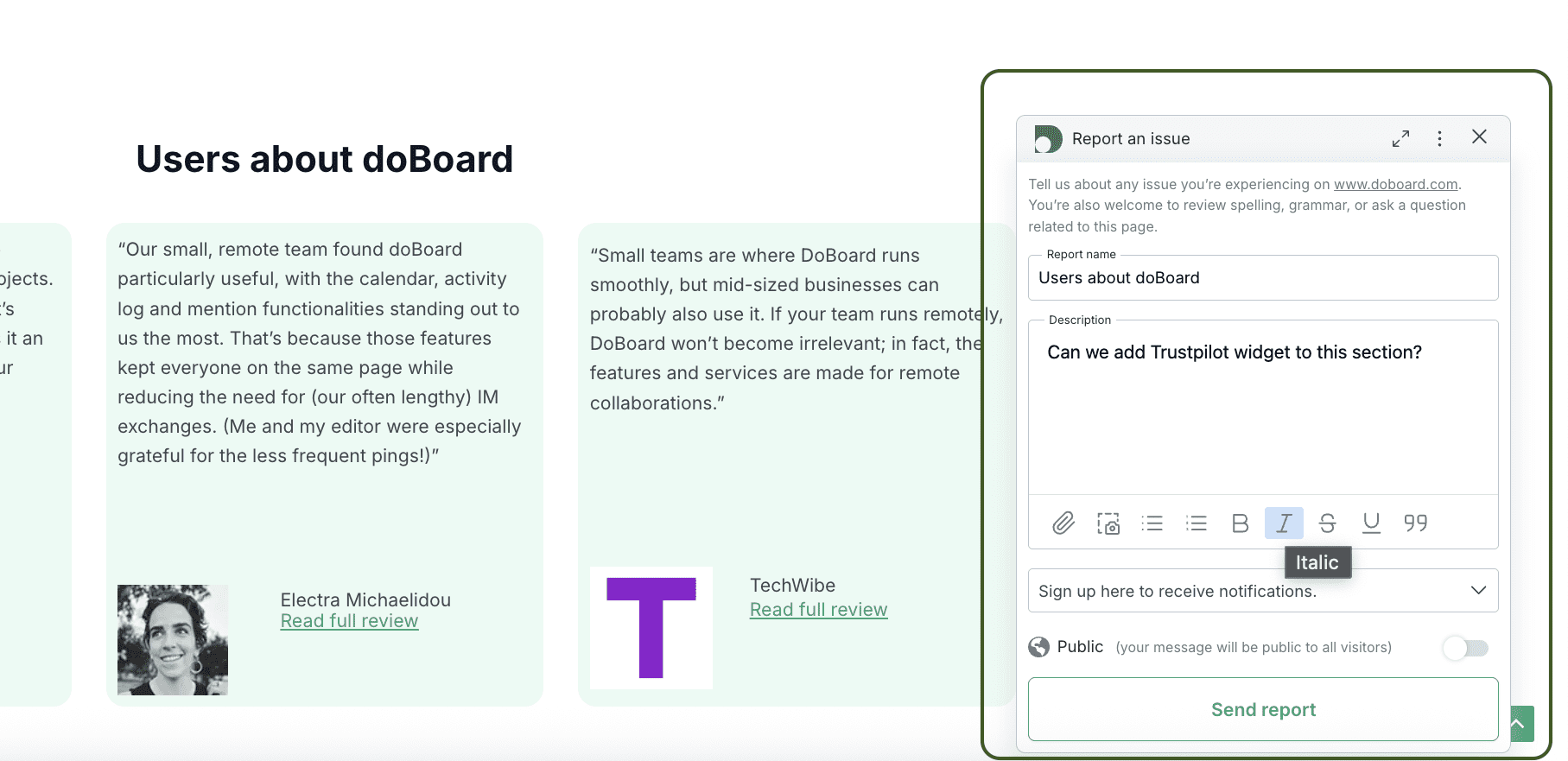
Spotfix lets teams collect feedback directly from a live or staged website and send it into doBoard as structured tasks. Clients, teammates, or visitors can highlight page elements, leave comments, and give context without sending long email threads or separate screenshots.
This is useful for web teams, agencies, product teams, and anyone who needs website feedback connected to project management.
Explore Spotfix
FAQ
doBoard includes features for task and project management, custom workflows, workload and capacity planning, time tracking, agile planning, team collaboration, access control, and website feedback. Teams can use doBoard to organize projects and tasks, plan capacity, track work, run lightweight sprints, keep updates connected, and collect website feedback with Spotfix.
doBoard helps teams organize work with a simple structure: projects, boards, and tasks. Tasks are the smallest unit of work, boards group related tasks, and projects keep related boards and tasks together. Teams can also use Companies when they need separate spaces for different clients, business units, or teams.
Yes. doBoard supports custom workflows with labels, tag groups, and task references. Labels help categorize tasks with any word or category, while tag groups help move tasks through structured stages such as To Do, In Progress, Review, and Done.
Yes. doBoard supports workload planning and capacity planning with task calendars, team calendars, available hours, time estimates, worked hours, and sprint planning views. Teams can see how much work is planned, how much capacity is available, and whether a teammate or sprint is becoming overloaded.
Yes. doBoard includes task-level time tracking. Team members can log time directly in task comments, either manually or by selecting time since opening the task or since the previous comment, so each time entry stays connected to the work context.
Yes. doBoard supports lightweight agile project management. Teams can use boards as sprints or backlogs, organize tasks with labels or tag groups, estimate work with Planning Poker, plan workload by available hours, and track sprint progress by teammate.
doBoard supports team collaboration by keeping discussions, updates, ownership, and access connected to the work itself. Teams can use task comments, mentions, notifications, task references, cross-project links, roles, and access levels to keep project context clear.
doBoard helps with remote team collaboration by showing task updates, comments, mentions, notifications, time zones, visible work hours, shifts, and workload planning in one workspace. Teams can see who is active, unavailable, on duty, or working different hours, which makes async coordination easier.
Yes. doBoard can work as part of an asynchronous work tools stack by keeping tasks, owners, comments, time logs, mentions, references, and updates connected to the work itself. This helps teams move projects forward without relying on live meetings or scattered chat threads for every update.
doBoard has an Inbox in the main menu for task updates that need attention. Notifications are separated into tasks where you were mentioned and tasks you follow. Teams can also receive email notifications as individual updates or as a doBoard Daily Feed with a once-a-day summary.